This article provides users with a general guide to the features listed.
These features may have been updated or superseded by additions found in the release notes.
Read the content below to become familiar with the feature and review the release notes to get the latest iteration.
Overview
BigQuery allows users to submit multiple queries in one request. This is referred to as scripting. For detailed information on BigQuery scripting visit Google's Scripting in standard SQL documentation.
When a BigQuery script is submitted each statement generates a job. The parent job is the query containing the script. For each statement within the script a child job is created.
Goliath manages script results and jobs differently than regular query requests.
- Script results are displayed in query results and are accompanied by a drop down list containing each statement.
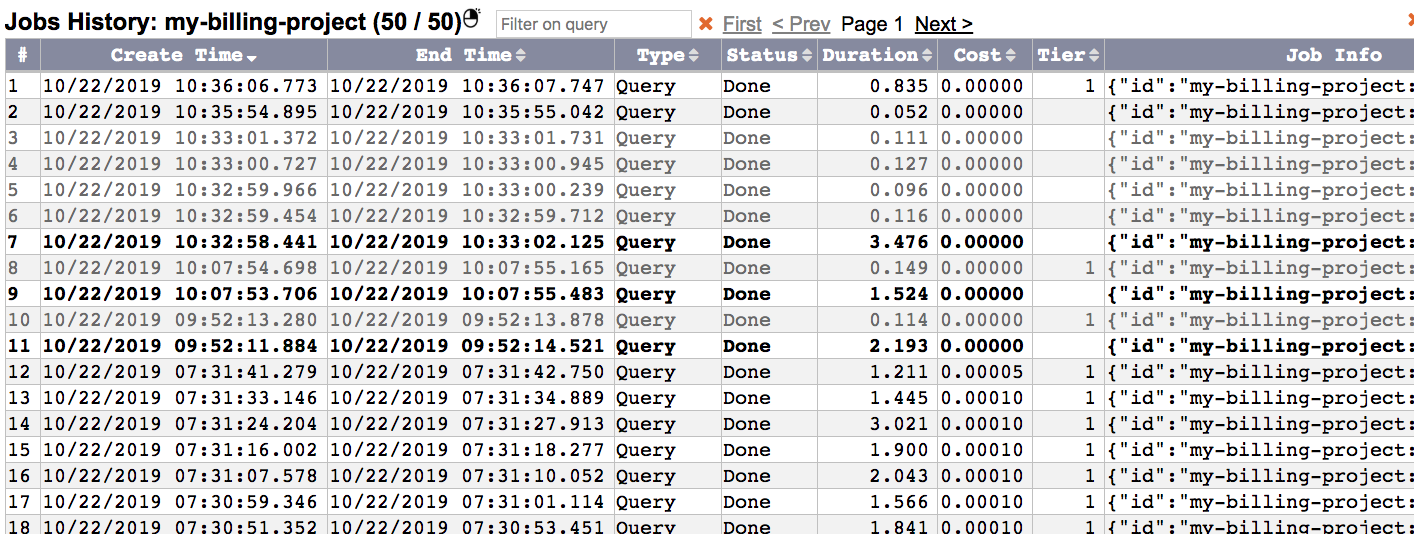
- Parent and child jobs are displayed in Jobs History as bold and color coded respectively and filtered to show only related jobs for the script.
Query Results for Scripts
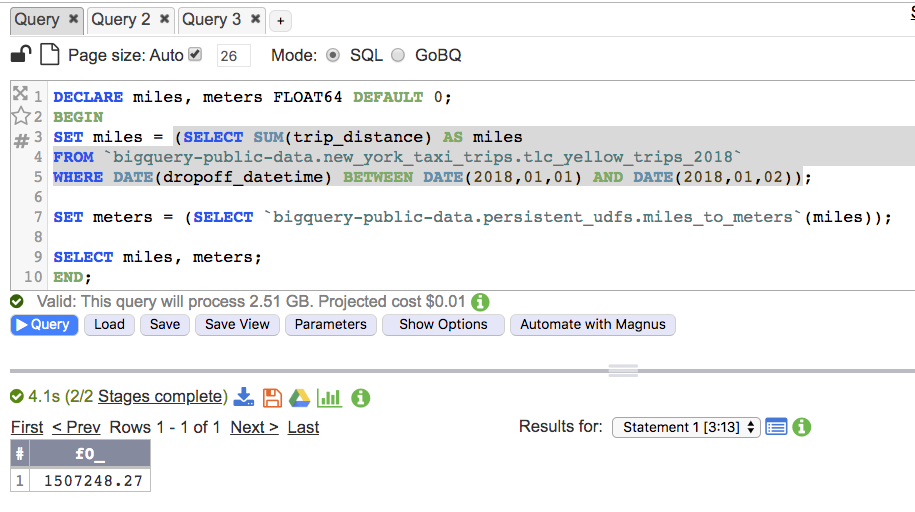
A BigQuery script is composed of multiple statements. For example:
DECLARE miles, meters FLOAT64 DEFAULT 0;
BEGIN;
SET miles = (SELECT SUM(trip_distance) AS miles
FROM `bigquery-public-data.new_york_taxi_trips.tlc_yellow_trips_2018`
WHERE DATE(dropoff_datetime) BETWEEN DATE(2018,01,01) AND DATE(2018,01,02));
SET meters = (SELECT `bigquery-public-data.persistent_udfs.miles_to_meters`(miles));
SELECT miles, meters;
END;
Processing Statement List
When a script is run each statement becomes a separate job.
In the example the submitted script is considered the parent job and each of the 3 statements are represented as child jobs.
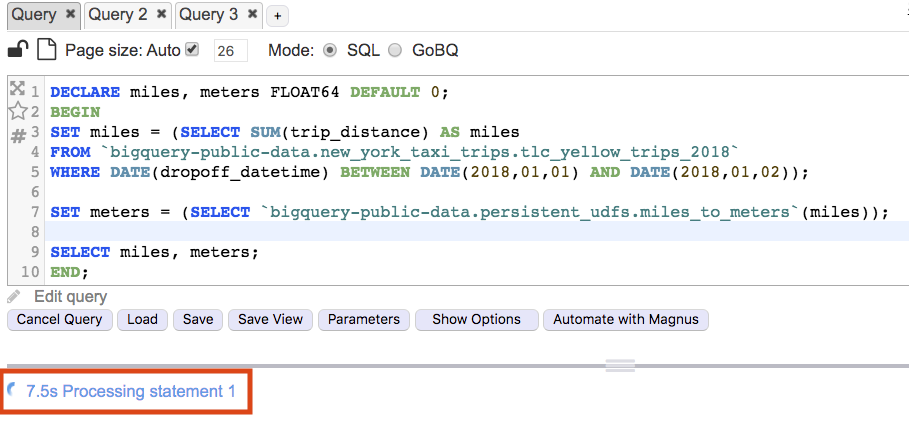
Goliath displays a message indicating the processing status of the script.
The below example shows the processing time along with an indication that the first statement is being processed.
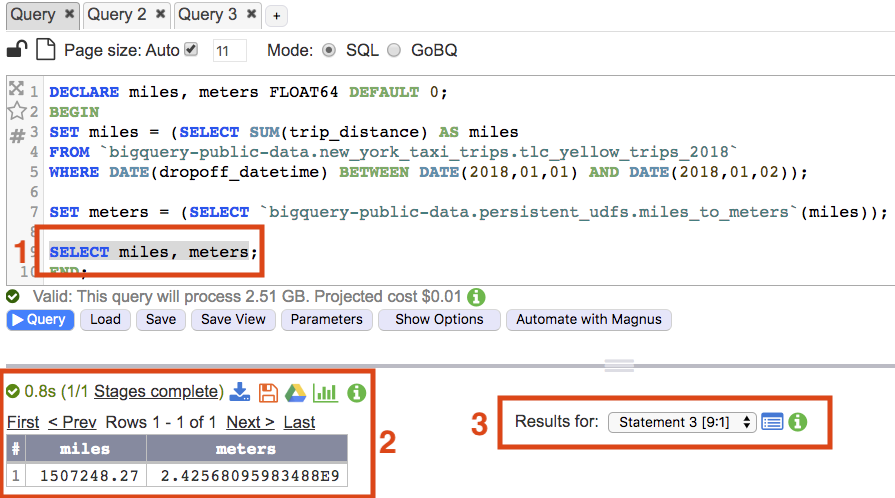
Once the script has completed processing the result of the last statement in the script is displayed.
- The statement representing the query results is highlighted
- The query result is displayed along with stages and job stats specific to the statement
- A drop down list of all statements is available. Selecting a statement from the list displays the selection's results
Statement List
After a script completes its run a drop down statement list is displayed.
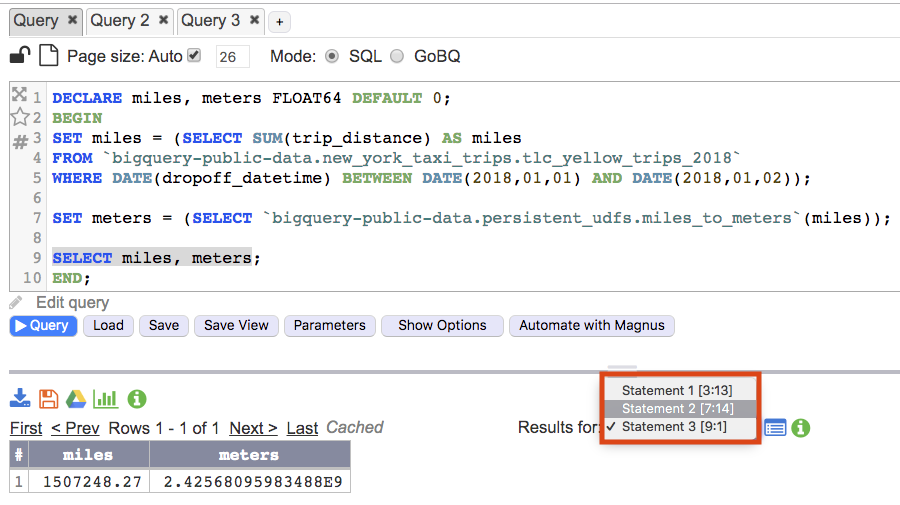
The list contains all of the statements that were part of the script and are numbered in order.
The statement also contains the line number and column position the query can be found at within the query text area. The values are where the statement starts and is represented as Line number : Column position.
Selecting from the drop down will highlight the selected statement and display the statement's results and info.
Link to Jobs History
There are several ways to display the job history for the completed script statements from the query results.
- Display all script (parent/child) jobs history
- Display parent job history
- Display child job history
Display All Script (parent/child) Jobs History
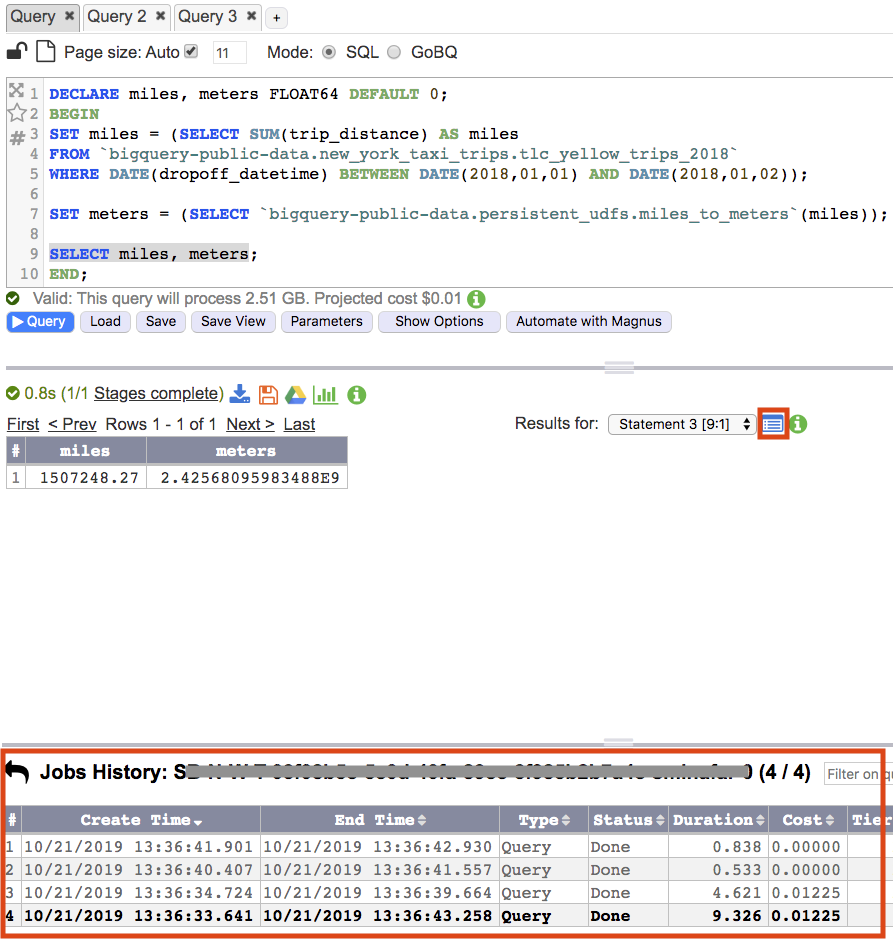
To display all script (parent/child) jobs history for the completed script click on the list item icon to the right of the Results for drop down.
This will open job history and display all parent and child jobs for the selected script.
Display Parent Job History
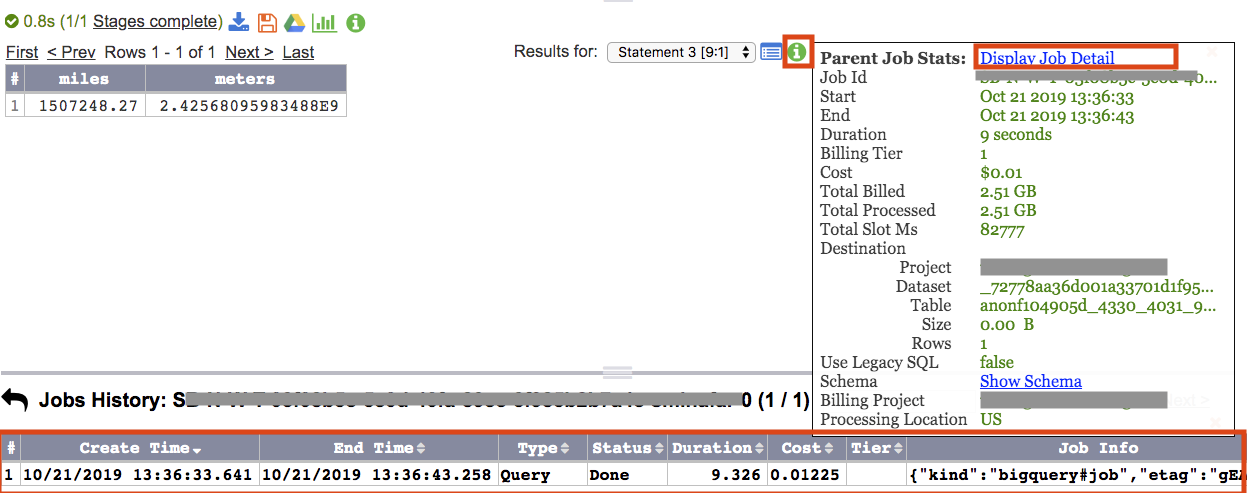
To display the parent's job history hover over the parent job's stats info icon and click on the Display Job Detail link.
Display Child Job History
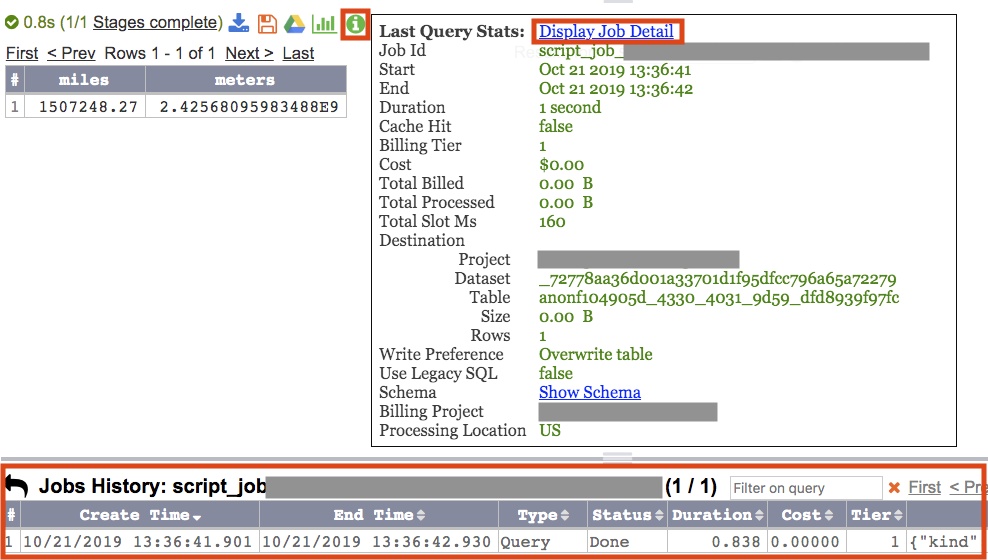
To display the child's job history hover over the query result job stats info icon and click on Display Job Detail link.
Jobs History for Scripts
Identifying Script Jobs
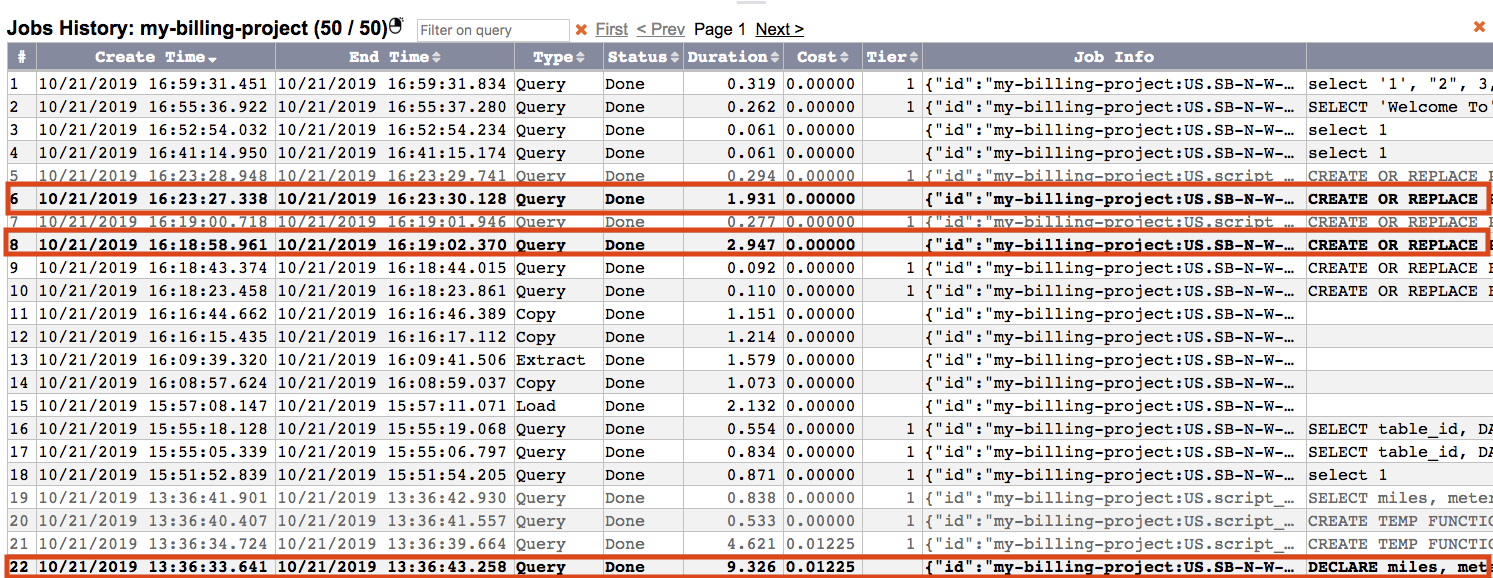
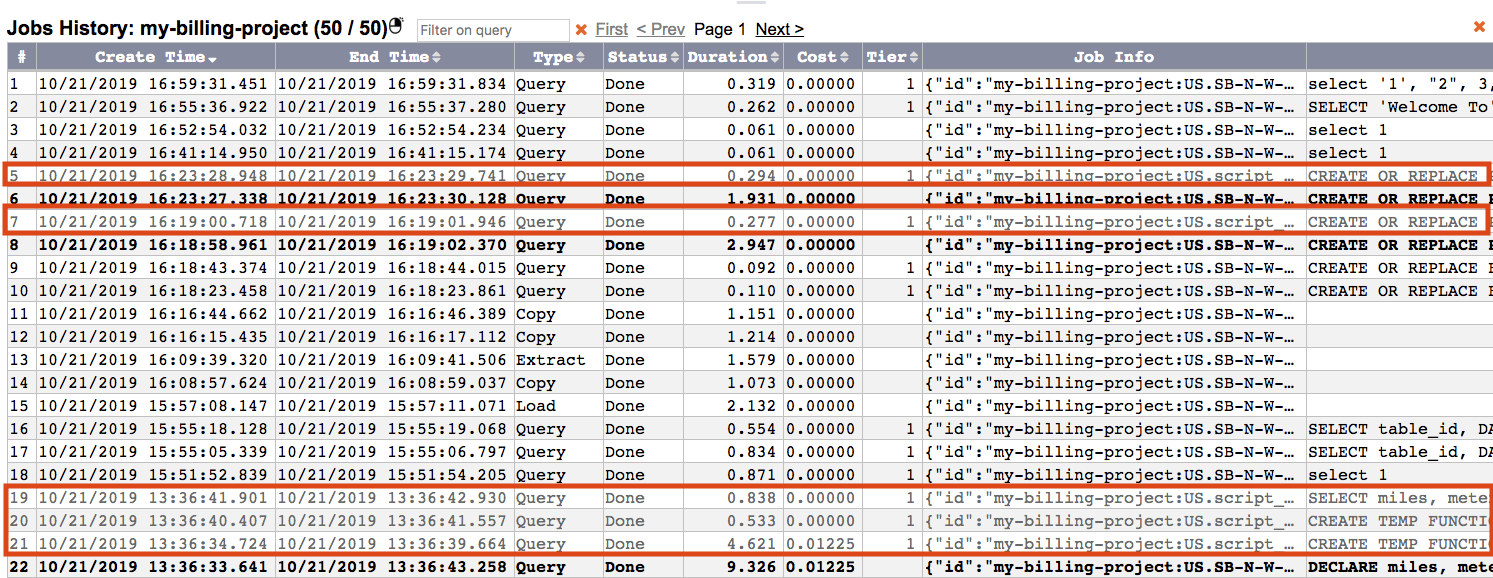
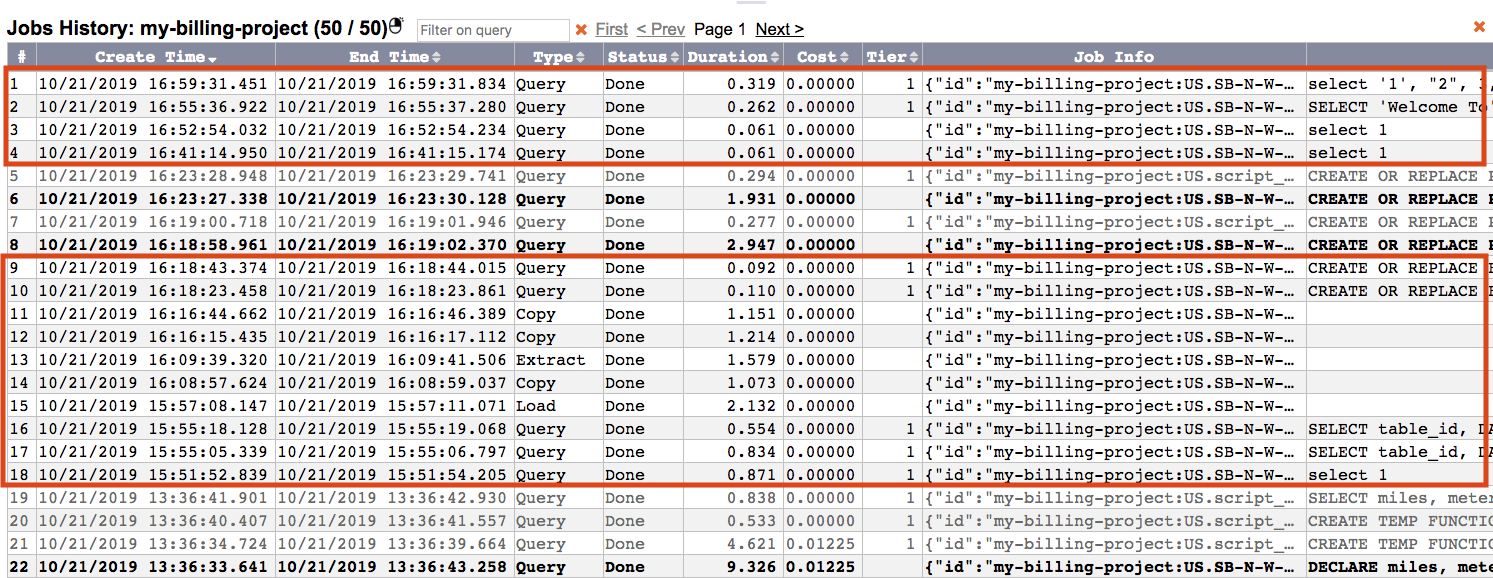
Scripts in Jobs History are identified by their font style.
- Parent script jobs have bold text
- Child script jobs have light grey text
- Regular jobs have normal, black text
Parent script jobs are queries that contain multiple statements. They are identified in Jobs History with bold text.
Child script jobs are statements that were executed as part of a script. They are identified in Jobs History with grey text.
Regular jobs are not scripts and are identified in Jobs History with non-bold black text.
Displaying Parent and Child Jobs
A script and all of its related jobs (parent/child) can be displayed in Jobs History.
Display parent and child jobs from Jobs History list
Right clicking on any script job (parent or child) will display a context menu option to Show All Jobs in Script.
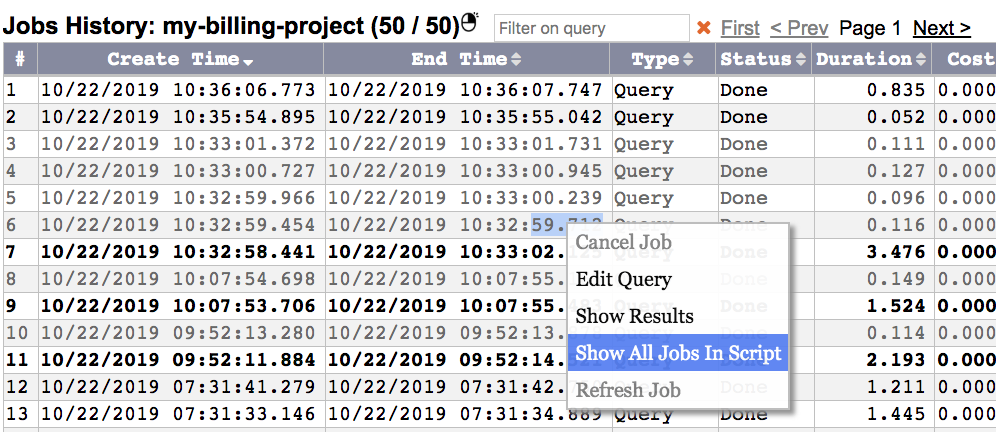
Click on Show All Jobs In Script to filter and display only those jobs that are associated with the selected script.

Click on the back arrow to return to the entire Jobs History list.

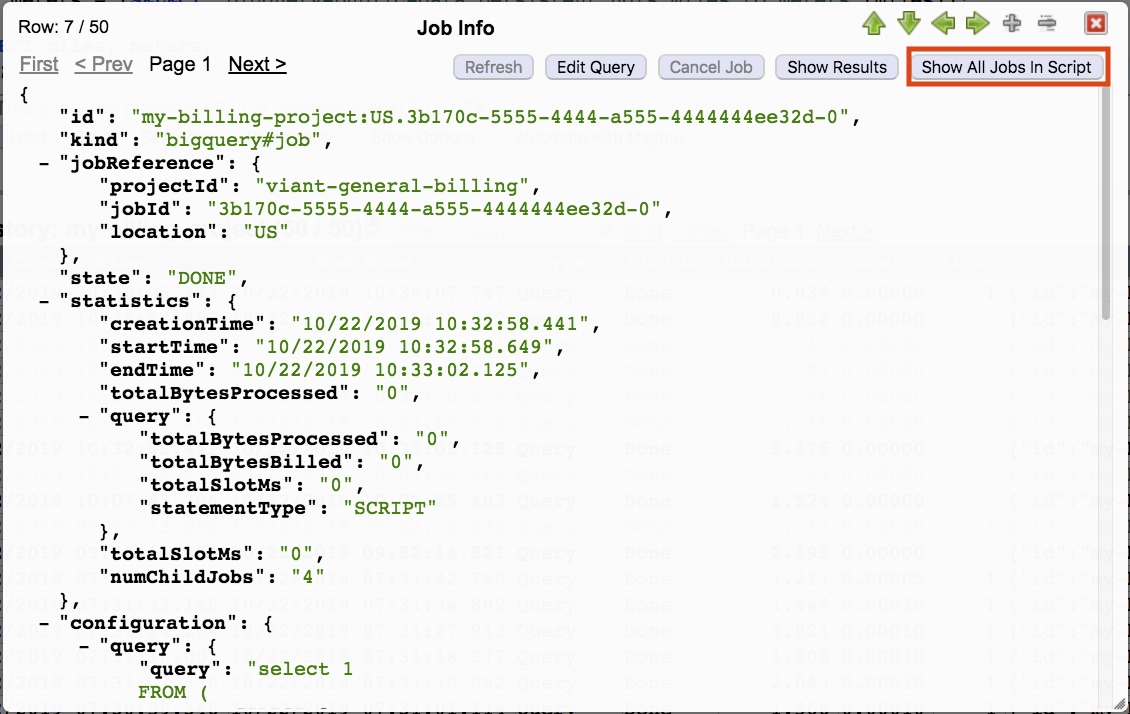
Display parent and child jobs from Jobs History Modal
When viewing any script job within the Jobs History modal a button will display to Show All Jobs In Script.
Click on Show All Jobs In Script to filter and display only those jobs that are associated with the selected script.